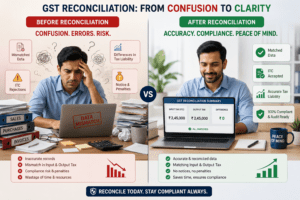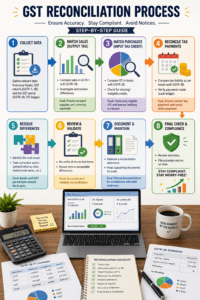
GST reconciliation in Excel
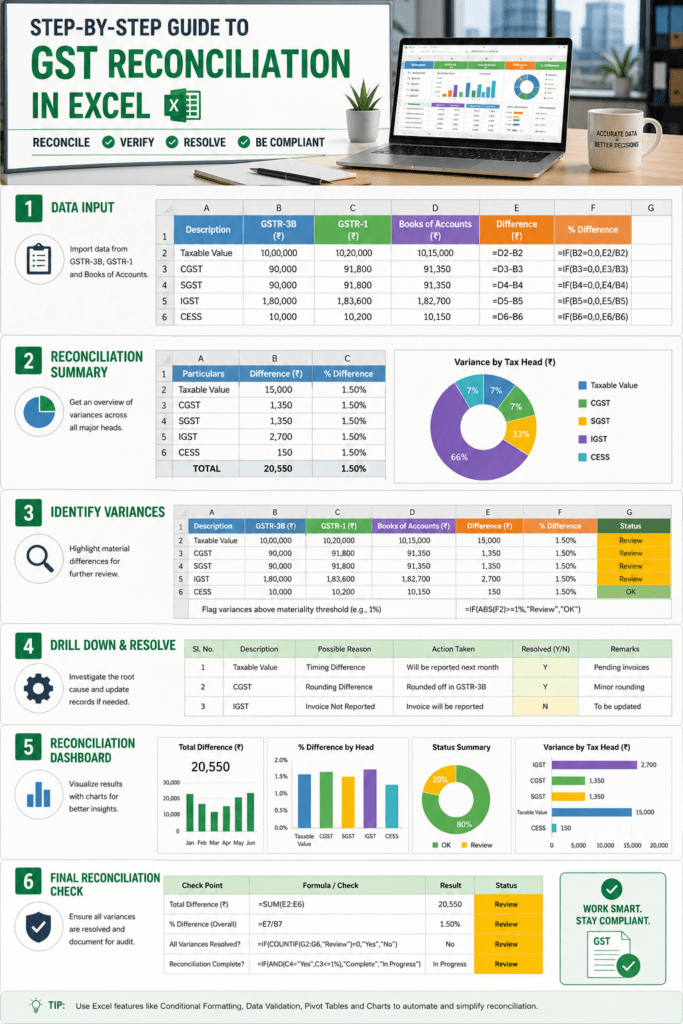
GST Reconciliation in Excel 2026: Complete Step-by-Step Guide for Accurate Tax Compliance
GST reconciliation in Excel saves businesses hours of manual work every month. According to industry data, a structured Excel comparison between GSTR-1, GSTR-2A, and GSTR-3B against your Sales and Purchase Registers is the foundation of accurate GST compliance.
Most Indian businesses struggle with reconciling multiple GST returns manually. Discrepancies between your internal records and government filings create audit risk, delayed refunds, and compliance penalties. GST reconciliation in Excel bridges this gap by automating data comparison and flagging mismatches in real time.
This guide walks you through building, maintaining, and optimizing your GST reconciliation in Excel workflow in 2026. Whether you’re a sole proprietor, partnership, or SME, you’ll learn practical techniques used by chartered accountants and tax professionals nationwide.
What Is GST Reconciliation in Excel and Why It Matters
GST reconciliation software in Excel is the process of comparing your internal accounting records against government GST filings to verify accuracy and identify discrepancies. GST reconciliation involves collating two data sets and comparing them using either an automated reconciliation tool or an Excel spreadsheet.
The core challenge: your Tally, QuickBooks, or manual ledger may show different input tax credit (ITC) than what appears on GSTR-2A. These gaps create compliance risk.
Why Excel Remains the Gold Standard for GST Reconciliation
- Full control: You design the logic, not a vendor’s algorithm.
- No subscription costs: Microsoft Excel is already licensed in most organizations.
- Transparency: Every formula is visible and auditable by your CA or auditor.
- Flexibility: Open the Excel tool, click “Import Books Data” to load your accounting software’s purchase register (your exported Tally GSTR-3B ITC details).
- Speed: Pivot tables and VLOOKUP formulas process thousands of rows in seconds.
In 2026, Excel-based GST reconciliation in Excel remains the most widely adopted method among Indian chartered accountants and tax teams.
Step-by-Step Process: How to Do GST Reconciliation in Excel
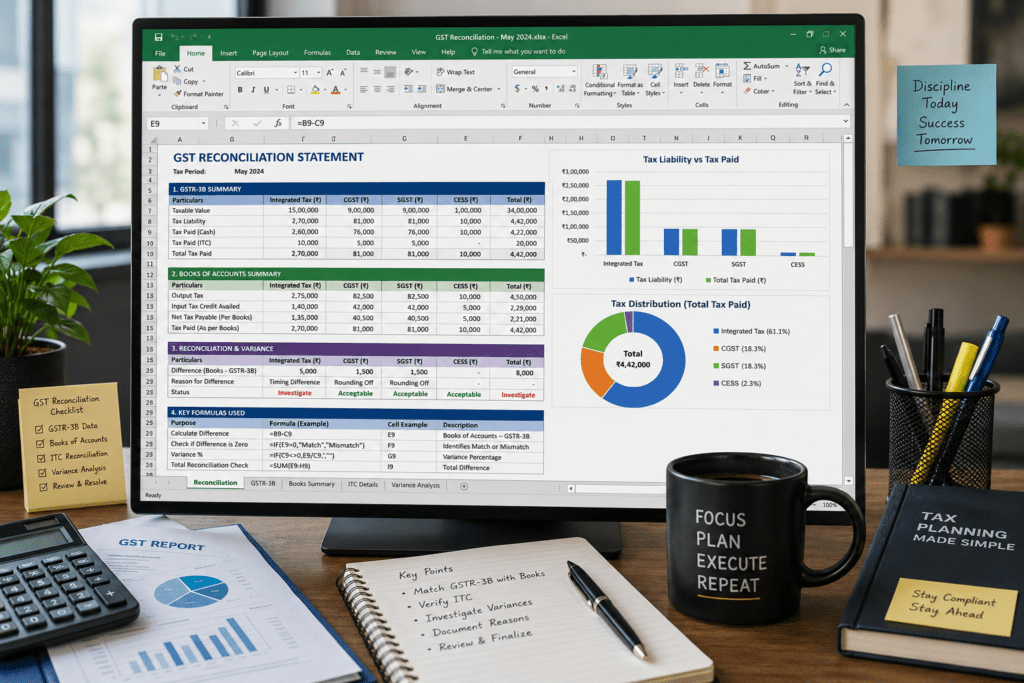
The reconciliation workflow follows a logical sequence. Each step builds on the previous one to create a complete audit trail.
Step 1: Export Your Source Data
Begin by extracting three critical data sets:
- GSTR-2A: Download from the GST portal. This shows ITC claimed by your suppliers.
- GSTR-3B: Your filed return showing ITC you actually claimed.
- Purchase Register: Export from Tally, QuickBooks, or your accounting software.
Save each file as a separate Excel sheet. Label them clearly: “GSTR-2A”, “GSTR-3B”, “Purchase_Register”.
Step 2: Standardize Column Headers and Data Formats
Inconsistent formatting breaks formulas. Standardize:
- Invoice number format (remove spaces, leading zeros if needed).
- GSTIN format (always 15 characters).
- Date format (DD-MMM-YYYY across all sheets).
- Amount format (numbers only, no currency symbols).
- Tax rate (5%, 12%, 18%, 28%, or 0%).
Just use this handy Excel sheet to get a clear, accurate comparison between your internal GST input data and the GSTR-2A report downloaded from the portal. This utility saves hours of manual cleanup.
Step 3: Create a Master Reconciliation Sheet
Build a new sheet called “Reconciliation” with these columns:
- Invoice Number
- Supplier GSTIN
- Invoice Date
- Invoice Amount
- ITC in Purchase Register
- ITC in GSTR-2A
- ITC in GSTR-3B
- Variance (GSTR-2A vs Purchase Register)
- Status (Match / Mismatch / Missing)
- Notes
Step 4: Use VLOOKUP to Match Records
Use VLOOKUP formulas to pull GSTR-2A and GSTR-3B data into your master sheet. Example formula for matching GSTR-2A ITC:
=IFERROR(VLOOKUP(A2,'GSTR-2A'!A:G,5,FALSE),"Not Found")
This formula searches for the invoice number in column A of the GSTR-2A sheet and returns the ITC amount from column 5. If no match is found, it displays “Not Found”.
Step 5: Identify and Flag Variances
Create a formula to flag mismatches:
=IF(E2=F2,"Match","Mismatch")
Where E2 is ITC in Purchase Register and F2 is ITC in GSTR-2A. Use conditional formatting to highlight mismatches in red.
Step 6: Analyze Discrepancies
Common reasons for variances:
- Timing differences: Invoice received in one month, GSTR-2A updated in another.
- Blocked credits: Certain invoices ineligible for ITC (personal use, non-business).
- Supplier filing delays: Supplier hasn’t filed GSTR-1 yet, so invoice missing from GSTR-2A.
- Amendment invoices: Credit notes or revised invoices not properly reconciled.
- Data entry errors: GSTIN or amount mistyped in your books.
Document each variance in the “Notes” column. This creates an audit trail for your CA.
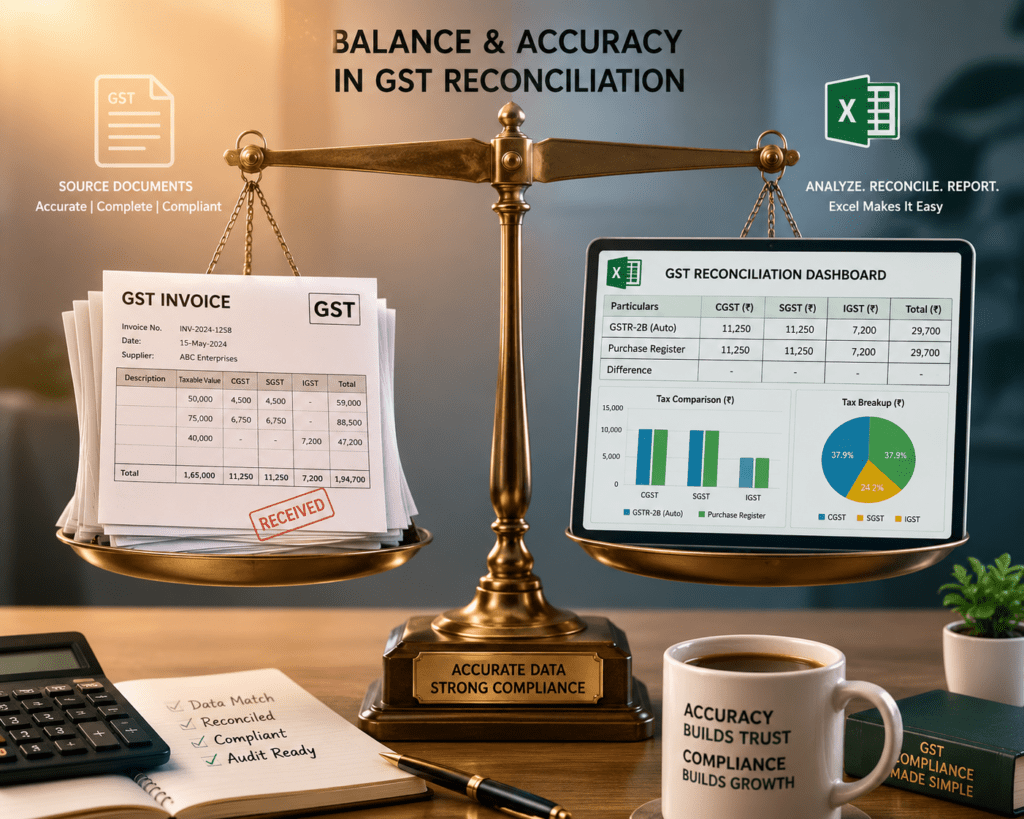
Advanced Techniques for GST Reconciliation in Excel
Once you master the basics, these advanced methods accelerate your workflow and reduce errors.
Pivot Tables for Summary Analysis
A pivot table instantly shows:
- Total ITC by supplier.
- Count of matched vs. mismatched invoices.
- Total variance amount by tax rate.
- Percentage of records reconciled.
Conditional Formatting for Visual Clarity
Apply color-coding to your reconciliation sheet:
- Green: Perfect matches (no action needed).
- Yellow: Minor variances (review but likely acceptable).
- Red: Major discrepancies (investigate immediately).
This visual approach helps you prioritize work and spot patterns quickly.
Data Validation for Error Prevention
Protect your reconciliation sheet by restricting data entry:
- Lock the formula columns (E, F, G, H, I).
- Allow editing only in the “Notes” column.
- Use drop-down lists for “Status” (Match, Mismatch, Missing, Blocked).
This prevents accidental overwrites and maintains data integrity.
Automating Monthly Reconciliation Workflows
Set up a monthly template that:
- Imports fresh GSTR-2A and GSTR-3B data.
- Runs VLOOKUP and variance formulas automatically.
- Generates a summary dashboard showing key metrics.
- Exports a clean report for your accountant or auditor.
This reduces manual effort from 4 hours to 30 minutes per month.
GST Reconciliation in Excel vs. Automated Tools
While Excel is powerful, modern software offers advantages for high-volume businesses. Here’s how they compare:
| Feature | GST Reconciliation in Excel | BizPlan AI Pro India | Other Reconciliation Tools |
|---|---|---|---|
| Setup Time | 2–4 hours | 30 minutes | 1–2 hours |
| Monthly Processing Time | 2–4 hours | 5–10 minutes | 15–30 minutes |
| Cost | Free (Excel license assumed) | Subscription-based | Subscription-based |
| Data Security | Local storage only | Cloud-encrypted | Cloud-encrypted |
| API Integration | Manual import/export | Direct Tally/QuickBooks sync | Limited integrations |
| Audit Trail | Formula-based, transparent | Automated logging | Automated logging |
| Scalability | Up to 50K rows (performance degrades) | Unlimited transactions | Varies by vendor |
| Best Use Case | Small businesses, low-volume invoices | Growing SMEs needing speed and accuracy | Enterprise-level compliance |
BizPlan AI Pro India is particularly well-suited for businesses processing 100+ invoices monthly. It automates the entire reconciliation workflow, from data import to variance analysis. However, for sole proprietors with under 50 invoices per month, Excel remains the most cost-effective option. BizPlan AI Pro India’s strength lies in speed and integration; its limitation is that it requires a subscription commitment, whereas Excel has zero incremental cost after initial setup.
For detailed comparisons of reconciliation approaches, see our guide on GST Reconciliation Software Comparison.
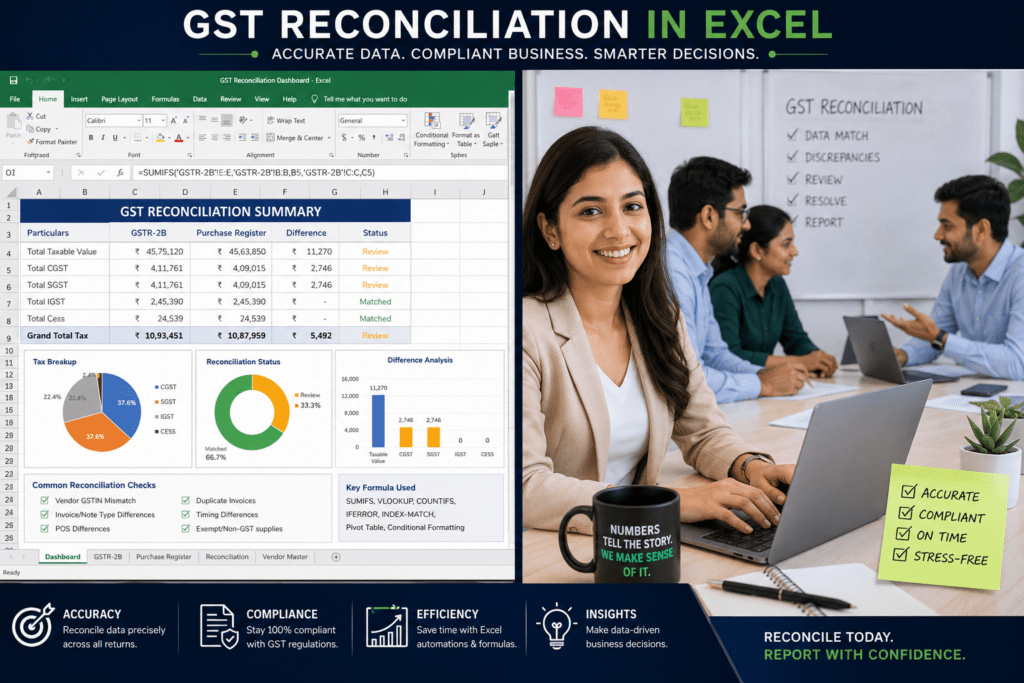
Frequently Asked Questions
What Is GST Reconciliation in Excel?
GST reconciliation in Excel is a spreadsheet-based method of comparing your internal accounting records (purchase register, sales register) against government GST filings (GSTR-2A, GSTR-3B). You import data into Excel, use formulas like VLOOKUP to match records, and flag discrepancies. The goal is to verify that the ITC you claimed matches what’s available in GSTR-2A and to identify missing or blocked invoices before filing your GSTR-3B return.
How to Do GST Reconciliation Step-by-Step?
Follow these six steps: (1) Export GSTR-2A, GSTR-3B, and your Purchase Register from your accounting software. (2) Standardize all column headers and data formats (dates, GSTIN, amounts). (3) Create a master reconciliation sheet with columns for invoice details, ITC amounts from each source, and variance calculations. (4) Use VLOOKUP formulas to automatically match invoices across sheets. (5) Create a formula to flag matches and mismatches, then apply conditional formatting to highlight variances. (6) Investigate and document each discrepancy in the Notes column. This workflow takes 2–4 hours monthly for small businesses.
How to Reconcile GSTR-3B and GSTR-2A in Excel?
Create a new sheet called “3B vs 2A Reconciliation.” In column A, list all invoices from GSTR-3B. In columns B and C, use VLOOKUP to pull the ITC amount claimed in GSTR-3B and the ITC available in GSTR-2A. In column D, calculate the variance (GSTR-3B ITC minus GSTR-2A ITC). Use conditional formatting to highlight negative variances (where you claimed more ITC than was available). These gaps indicate either timing issues, blocked credits, or data entry errors that need investigation before your next GSTR-3B filing.
How to Prepare Reconciliation in Excel?
Start by creating a template with standardized headers: Invoice Number, Supplier GSTIN, Invoice Date, Amount, ITC in Books, ITC in GSTR-2A, ITC in GSTR-3B, Variance, and Status. Set up VLOOKUP and IF formulas to automate matching and flagging. Use Data Validation to restrict entries in the Status column to predefined options (Match, Mismatch, Missing, Blocked). Apply conditional formatting to color-code results. Save this as a master template and reuse it monthly. This approach reduces preparation time and ensures consistency across periods.
What Are the 5 Steps of the Reconciliation Process?
The five core steps are: (1) Data Collection: Export GSTR-2A, GSTR-3B, and your purchase register. (2) Data Standardization: Ensure consistent formatting across all sheets. (3) Matching: Use VLOOKUP to link records by invoice number and supplier GSTIN. (4) Variance Analysis: Calculate differences and flag discrepancies. (5) Investigation and Documentation: Research each mismatch, document the root cause, and decide whether to adjust your books or file an amendment. This five-step framework applies whether you use Excel or automated software.
Conclusion
GST reconciliation in Excel remains a practical, transparent, and cost-effective method for Indian businesses in 2026. By following the step-by-step process outlined above, you can automate most of the reconciliation work, catch errors early, and build a defensible audit trail for your chartered accountant or tax auditor.
For small businesses and sole proprietors with moderate invoice volumes, Excel is sufficient. For growing SMEs processing hundreds of invoices monthly, explore AI-powered GST reconciliation tools like BizPlan AI Pro India, which automate the entire workflow and integrate directly with your accounting software.
Start by downloading a sample reconciliation template, standardizing your data formats, and building your VLOOKUP formulas. Once your template is live, monthly reconciliation will take just 30 minutes to an hour. Ready to streamline your GST compliance? Discover the best AI GST reconciliation tools for 2026 or implement our Excel best practices today.

R. Sharma is a senior startup advisor and business planning specialist at BizPlan AI Pro. With over a decade of experience in Indian corporate finance and MSME consulting, he has helped hundreds of founders structure financial projections and secure bank funding.